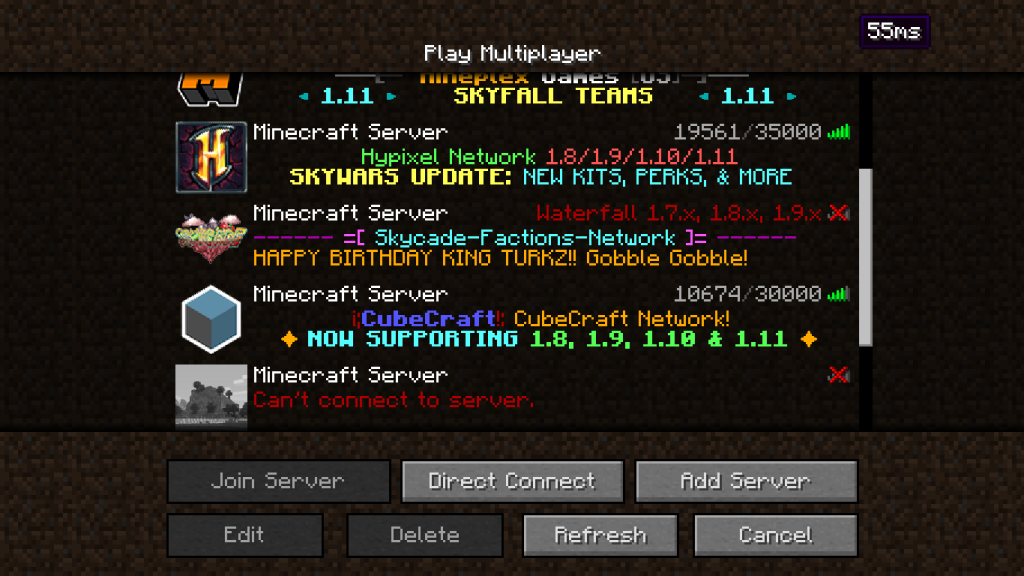
Designing a server logo on your own can feel overwhelming, but there are many tools available—both free and paid—that make the process much easier. In this guide, we’ll go over the different options you can use to create a logo and explain how to set it as your server icon so it appears in the multiplayer list in Minecraft.
Many designers begin by sketching their ideas on paper. Once satisfied with the concept, they scan or photograph the sketch and recreate it digitally using design software as a reference.
Software You Can Use to Design Your Logo
Free Tools
If you have some experience with graphic design, there are excellent free programs available. For example:
- GIMP
- Paint.NET
Both are powerful image editors that you can download and use at no cost.
If you prefer not to install software, online tools can handle basic logo design tasks directly in your browser. A platform like Pixlr offers many useful features and is a solid option for quick, lightweight projects.
Paid Software
For more advanced users, premium programs may be worth the investment. Applications such as:
- Adobe Photoshop
- Adobe Illustrator
Photoshop is excellent for detailed raster designs, while Illustrator is ideal if you prefer working with vector graphics, which scale cleanly and are perfect for logo creation.
Hiring a Professional Designer
If design isn’t your strength, you can commission an artist instead. Many designers sell premade logos or offer custom work through community marketplaces and forums. You can purchase ready-made designs or request a completely unique logo tailored to your server’s theme.
There are also specialized services that provide customizable templates for Minecraft servers. Pricing varies widely depending on the artist’s experience, the design’s complexity, and whether the work is exclusive.
How to Set Your Server Icon
Once your logo is ready, follow these steps to make it appear in the multiplayer server list:
- Rename the file to
server-icon.png(it must be in.pngformat). - Ensure the image size is exactly 64 × 64 pixels. If the dimensions are different, the icon will not display correctly.
- Log into your hosting provider’s control panel.
- Open the File Manager section.
- Click Upload, then choose your
server-icon.pngfile. - Restart your server to apply the changes.
If you are running the server locally, simply place the server-icon.png file inside your server’s main directory. As long as the file name and dimensions are correct, it will display automatically after restarting the server.